

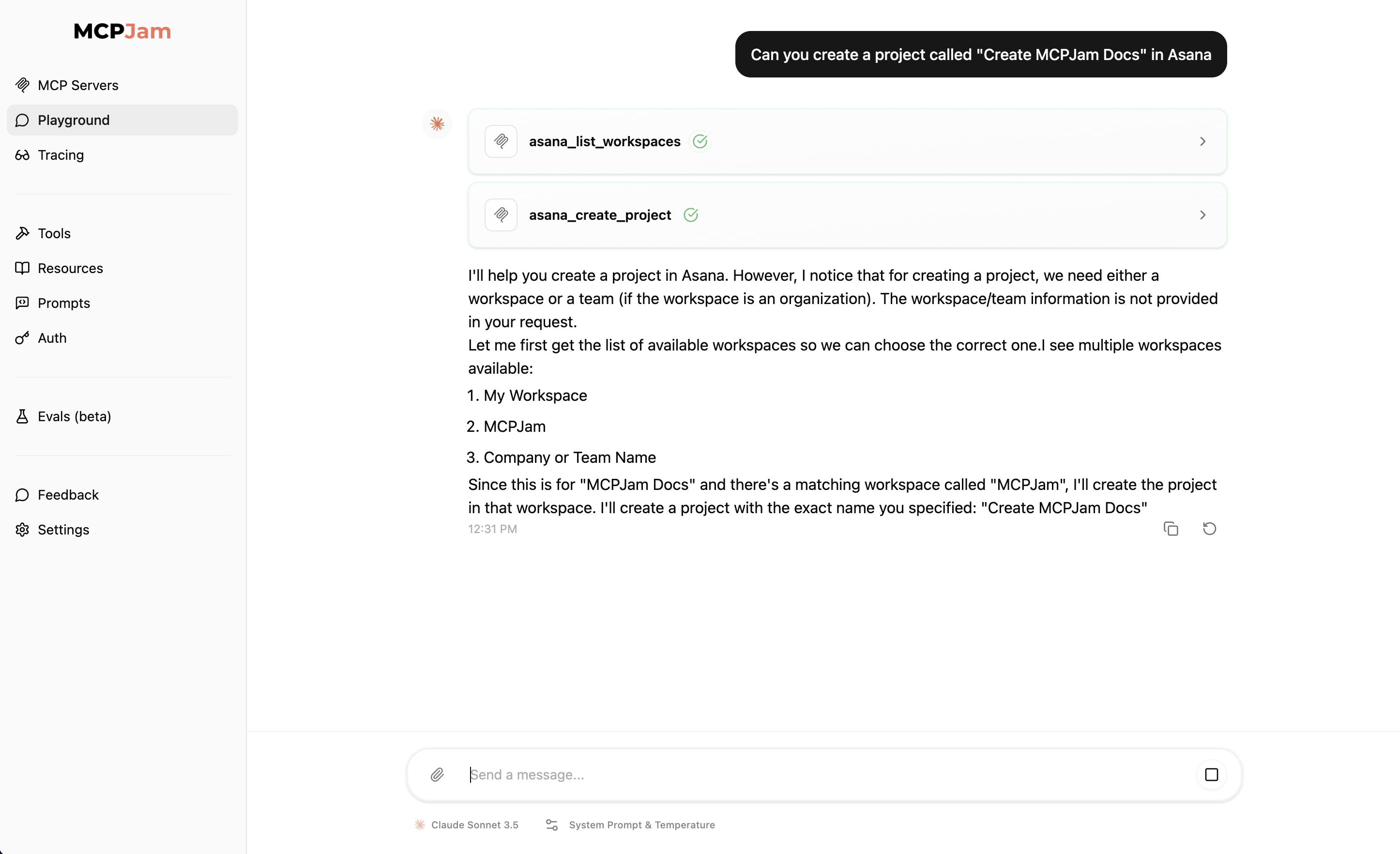
Set up LLM Playground
You need to set up at least one LLM to use the playground. Go to the settings tab in the inspector and follow instructions from there.OpenAI
Get an API key from OpenAI Platform.gpt-4o, gpt-4o-mini, gpt-4-turbo, gpt-4, gpt-5.1, gpt-5.1-codex, gpt-5.1-codex-mini, gpt-5, gpt-5-mini, gpt-5-nano, gpt-5-chat-latest, gpt-5-pro, gpt-5-codex, gpt-4.1, gpt-4.1-mini, gpt-4.1-nano, gpt-3.5-turbo,o3-mini, o3, o4-mini, o1
GPT-5 models require organization verification. If you encounter access
errors, visit OpenAI
Settings and
verify your organization. Access may take up to 15 minutes after verification.
GPT-5 models do not support temperature configuration. The temperature setting
will be automatically disabled when using GPT-5 models.
Claude (Anthropic)
Get an API key from Anthropic Console.claude-opus-4-1, claude-opus-4-0, claude-sonnet-4-5, claude-sonnet-4-0, claude-3-7-sonnet-latest, claude-haiku-4-5, claude-3-5-haiku-latest
Gemini
Get an API key from Google AI Studiogemini-3-pro-preview, gemini-2.5-pro, gemini-2.5-flash, gemini-2.5-flash-lite, gemini-2.0-flash-exp, gemini-1.5-pro, gemini-1.5-pro-002, gemini-1.5-flash, gemini-1.5-flash-002, gemini-1.5-flash-8b, gemini-1.5-flash-8b-001, gemma-3-2b, gemma-3-9b, gemma-3-27b, gemma-2-2b, gemma-2-9b, gemma-2-27b, codegemma-2b, codegemma-7b
Deepseek
Get an API key from Deepseek Platformdeepseek-chat, deepseek-reasoner
Mistral AI
Get an API key from Mistral AI Consolemistral-large-latest, mistral-small-latest, codestral-latest, ministral-8b-latest, ministral-3b-latest
OpenRouter
Get an API key from OpenRouter Console Select from any tool-capable model in the dropdown.Ollama
Make sure you have Ollama installed, and the MCPJam Ollama URL configuration is pointing to your Ollama instance. Start an Ollama instance withollama serve <model>. MCPJam will automatically detect any Ollama models running.
LiteLLM Proxy
Use LiteLLM Proxy to connect to 100+ LLMs through a unified OpenAI-compatible interface.- Start LiteLLM Proxy: Follow the LiteLLM Proxy Quick Start Guide to set up your proxy server
- Configure in MCPJam: Go to Settings → LiteLLM card → Click “Configure”
- Enter Connection Details:
- Base URL: Your LiteLLM proxy URL (default:
http://localhost:4000) - API Key: Your proxy API key (use the same key you use in your API requests)
- Model Aliases: Comma-separated list of model names configured in your proxy (e.g.,
gpt-3.5-turbo, claude-3-opus, gemini-pro)
- Base URL: Your LiteLLM proxy URL (default:
Use the exact model names that work with your LiteLLM proxy’s
/v1/chat/completions endpoint. These are typically the model names without
provider prefixes (e.g., gpt-3.5-turbo instead of openai/gpt-3.5-turbo).gpt-3.5-turbo as the model alias.
Choose an LLM model
Once you’ve configured your LLM API keys, go to the Playground tab. On the bottom near the text input, you should see a LLM model selector. Select the model from the ones you’ve configured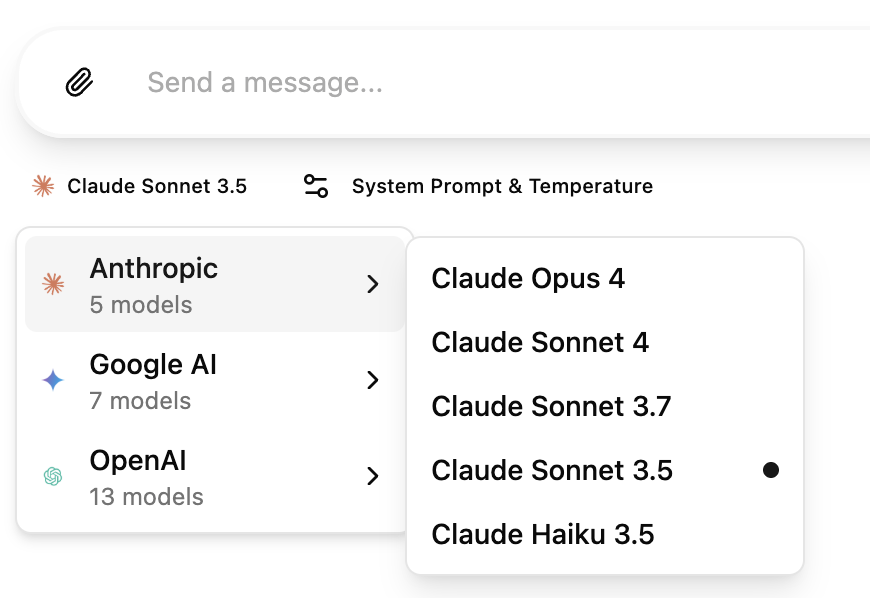
System prompt and temperature
You can configure the system prompt and temperature, just like you would building an agent. The temperature is defaulted to the default value of the LLM providers (Claude = 0, OpenAI = 1.0).Higher temperature settings tend to hallucinate more with MCP interactions

Using MCP prompts in chat
You can use MCP prompts directly in the playground chat by typing/ to trigger the prompts menu. When you select a prompt, it appears as an expandable card above the chat input showing:
- Server name - Which MCP server provides the prompt
- Description - What the prompt does
- Arguments - Required and optional parameters
- Preview - A preview of the prompt content
Playground layout
The playground features a split-panel layout with:- Chat panel (left) - Your conversation with the LLM, including tool calls and results
- JSON-RPC logger (right) - Real-time view of MCP protocol messages between Inspector and your servers
Error handling
When errors occur during playground interactions, you’ll see an error message with a “Reset chat” button. For detailed debugging, click “More details” to expand additional error information, including JSON-formatted error responses when available. This helps you quickly identify and resolve issues with your MCP server or LLM configuration.Elicitation support
MCPJam has elicitation support in the LLM playground. Any elicitation requests will be shown as a popup modal.MCP-UI support
The playground supports rendering custom UI components from MCP servers using the MCP-UI specification. When an MCP tool returns a UI resource, it will be rendered inline in the chat with interactive capabilities. MCP-UI components can:- Display rich, interactive visualizations
- Trigger tool calls through button actions
- Send follow-up messages to the chat
- Open external links
- Show notifications
ChatGPT Apps and MCP Apps support
The playground supports rendering custom UI components from MCP tools using both the OpenAI Apps SDK (ChatGPT apps) and MCP Apps. ChatGPT Apps: When a tool includes anopenai/outputTemplate metadata field pointing to a resource URI, the playground will render the custom HTML interface in an isolated iframe with access to the window.openai API.
MCP Apps: When a tool includes a ui/resourceUri metadata field, the playground will render the custom UI component inline in the chat.
This enables MCP servers to provide rich, interactive visualizations for tool results, including charts, forms, and custom widgets that can call other tools or send followup messages to the chat.
Display modes
OpenAI Apps can request different display modes to optimize their presentation:- Inline (default) - Widget renders within the chat message flow
- Picture-in-Picture - Widget floats at the top of the screen, staying visible while you scroll through the chat
- Fullscreen - Widget expands to fill the entire viewport for immersive experiences
window.openai.requestDisplayMode({ mode: 'pip' }) or window.openai.requestDisplayMode({ mode: 'fullscreen' }). Users can exit PiP or fullscreen modes by clicking the close button in the top-left corner of the widget.
Device and locale testing
The playground includes controls for testing widgets across different device types and locales:- Device selector - Switch between mobile, tablet, and desktop viewports to test responsive layouts
- Locale selector - Choose from common BCP 47 locales (e.g., en-US, es-ES, ja-JP) to test internationalization
- Theme toggle - Switch between light and dark modes
window.openai API, allowing them to adapt their UI accordingly.
Widget debugging
When viewing tool results with custom UI components, you can access debugging information using the icon buttons in the tool header:- Data (database icon) - View tool input, output, and error details
- Widget State (box icon) - Inspect the current widget state and see when it was last updated (ChatGPT Apps only)
- CSP (shield icon) - View CSP violations and suggested fixes for both ChatGPT Apps and MCP Apps
The Widget State tab only appears for ChatGPT Apps (OpenAI SDK). MCP Apps
(SEP-1865) do not support persistent widget state.
Content Security Policy (CSP)
The UI Playground includes CSP enforcement controls to help you test widget security configurations. You can switch between two CSP modes using the shield icon in the toolbar:- Permissive (default) - Allows all HTTPS resources, suitable for development and testing
- Widget-Declared - Only allows domains declared in the widget’s CSP metadata field
openai/widgetCSP) and MCP Apps (ui/csp per SEP-1865).
When a widget violates CSP rules in widget-declared mode, you’ll see a badge on the CSP debug tab showing the number of blocked requests. Click the CSP tab to view:
- Suggested fix - Copyable JSON snippet to add to your widget’s CSP metadata field
- Blocked requests - List of all CSP violations with directive and URI details
- Declared domains - The
connect_domainsandresource_domainsyour widget currently declares
CSP mode only applies in the UI Playground. The Chat tab always uses
permissive mode to avoid disrupting normal testing workflows.
UI Playground device settings
The UI Playground provides controls to simulate different device environments for testing ChatGPT Apps and MCP Apps. These settings affect how widgets receive device context.Protocol-aware controls
The playground automatically detects which app protocol is in use and shows appropriate controls:- ChatGPT Apps - Tools with
openai/outputTemplatemetadata - MCP Apps - Tools with
ui/resourceUrimetadata
Device type
Select between mobile, tablet, or desktop device types. This affects the device context that widgets receive:- ChatGPT Apps:
window.openai.userAgent.device.type - MCP Apps:
hostContext.platform(derived as “mobile”, “web”, or “desktop”)
Locale
Choose from common BCP 47 locales (e.g., en-US, ja-JP, es-ES) to test internationalization. Available for both ChatGPT Apps and MCP Apps:- ChatGPT Apps:
window.openai.locale - MCP Apps:
hostContext.locale
Timezone (MCP Apps only)
Select an IANA timezone identifier (e.g., America/New_York, Asia/Tokyo) to test timezone-aware widgets. This control only appears when testing MCP Apps:- MCP Apps:
hostContext.timeZone
Device capabilities
Toggle hover and touch capabilities to simulate different input methods:- Hover - Indicates whether the device supports hover interactions (typically enabled for desktop, disabled for mobile)
- Touch - Indicates whether the device supports touch input (typically enabled for mobile/tablet, disabled for desktop)
- ChatGPT Apps:
window.openai.userAgent.capabilities.hoverandwindow.openai.userAgent.capabilities.touch - MCP Apps:
hostContext.deviceCapabilities.hoverandhostContext.deviceCapabilities.touch
Safe area insets
Configure safe area insets to simulate device notches, rounded corners, and gesture areas. Click the safe area button in the toolbar to open the editor, which provides:- Visual preview - Shows how insets affect the content area
- Preset configurations - Quick access to common device profiles:
- None - No insets (0px on all sides)
- Notch - iPhone with notch (44px top, 34px bottom)
- Island - iPhone with Dynamic Island (59px top, 34px bottom)
- Android - Android gesture navigation (24px top, 16px bottom)
- Custom values - Manually adjust top, bottom, left, and right insets in pixels
- ChatGPT Apps:
window.openai.safeArea.insets - MCP Apps:
hostContext.safeAreaInsets
Fullscreen navigation
When a widget is in fullscreen mode, a navigation header appears at the top with:- Back/Forward buttons - Navigate through the widget’s browsing history (enabled when navigation is available)
- Widget title - Displays the tool name
- Close button - Exit fullscreen mode